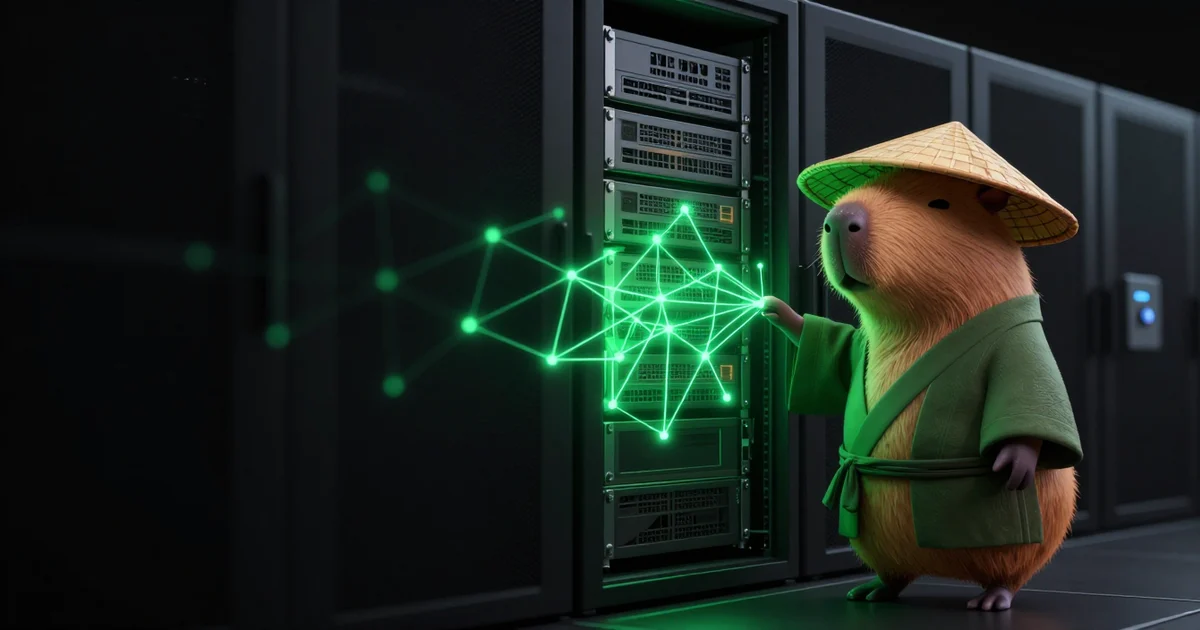

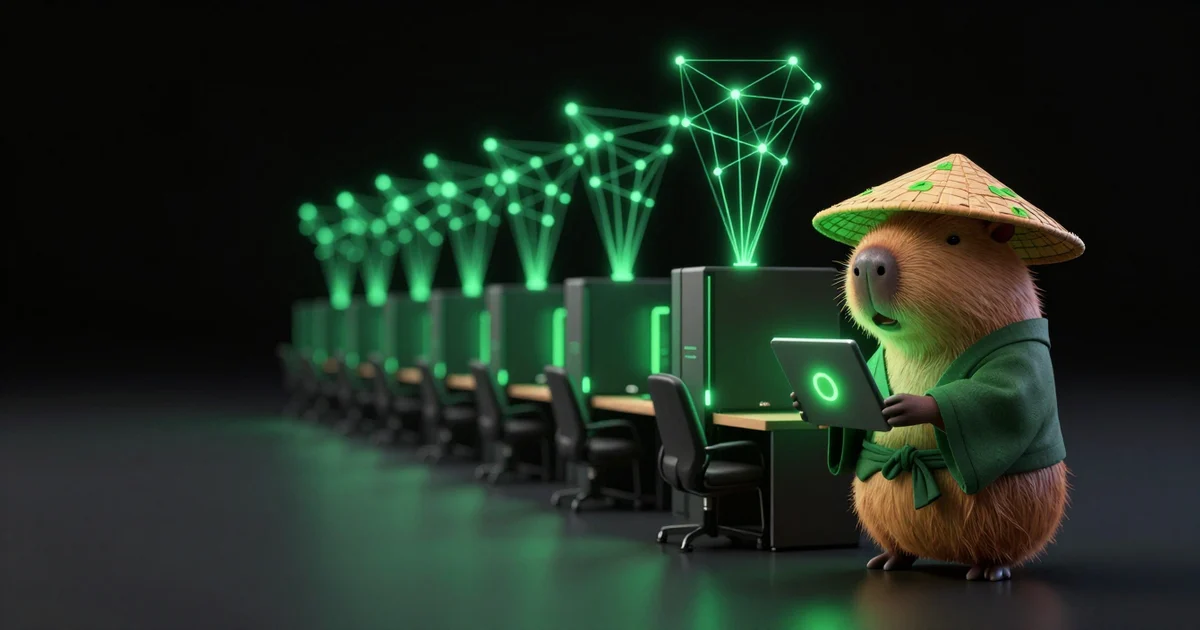
A gaming cafe is a room full of strong GPUs that work a shift. When the doors close, they stop. The hardware is paid for, the network is there, and for a large part of every day none of it does anything.
Spot nodes let a cafe put that time to work on ParalonCloud and get every PC back, on time, before customers walk in.
How it works for a cafe
Each PC is a node on the network. As a spot node it has a Pause / Resume button:
- Available after closing: the network can rent the PC to developers or run AI inference on it.
- Paused before opening: any rental gets two minutes' notice and stops; inference finishes what it's doing within two minutes and stops; nothing new is placed on it.
You don't have to flip each PC by hand. Once you have several spot nodes, a bar above your node list shows how many are Available and how many Paused, with Pause all and Resume all. Tick the checkbox on individual PCs to act on just those: keep one row open to customers late and release the rest, or take back only the tournament area.
Taking machines back never counts against you. Spot rentals aren't part of your reputation score, so pausing the floor every morning is exactly how it's meant to be used.
Setting up the floor
Each PC runs the ParalonCloud agent in Docker Desktop with WSL2. The agent lives in a container: it can't see the PC's files, the installed games or the cafe's management software.
For every PC:
- In the Dashboard, Add node: a name you'll recognize (
row-a-pc-03), GPU, Windows (WSL). - Advanced options → Spot. Untick Available if the cafe is open while you're setting up.
- Run the install command on that PC.
Each PC gets its own command and its own node, so the dashboard shows the whole floor machine by machine. See Add a Node and Prerequisites for the Docker Desktop and NVIDIA setup.
What to plan for
- A daily routine. Today the controls are in the dashboard: someone resumes the floor at closing and pauses it before opening. Give the pause a few minutes' margin before the first customer.
- Power and sleep settings. PCs that sleep, hibernate or reboot for updates overnight cut off whatever they're running. Disable sleep on the overnight profile and set Windows Update active hours to cover the night.
- Network. Every PC needs a stable connection (50 Mbps or more per node) and outbound port 7844 for the tunnel; no inbound ports or public IPs. Rentals are isolated from your local network: a renter's container can't reach other devices in the cafe.
- Docker Desktop licensing. Docker Desktop is free for small businesses; larger companies need a paid Docker subscription. Check Docker's terms for your size.
- Earnings depend on your hardware and your electricity price. Check what your cards rent for on the Pricing page and weigh it against the floor's overnight power draw before you commit the whole room.
Why spot and not regular
A regular node is expected to stay up for as long as someone rents it. A cafe can't promise that: the PCs are needed every day at the same time. Spot makes that the rule rather than a breach of it. Renters see your PCs labelled as reclaimable and priced accordingly, and you see a clean reputation however often you pause.
Next
- Spot Nodes — Pause / Resume, fleet controls, what pausing does.
- Rent Out Your Gaming PC's GPU When You're Not Playing — the same setup for a single PC.
- Rewards & Earnings and Payouts — how earnings are credited and withdrawn.