
Add a Node
Connect your GPU to ParalonCloud and start earning — a single Docker command, no port forwarding required.
Adding a node connects your machine to the network so it can host rentals. Make sure you've met the provider prerequisites first.
1. Open the dashboard
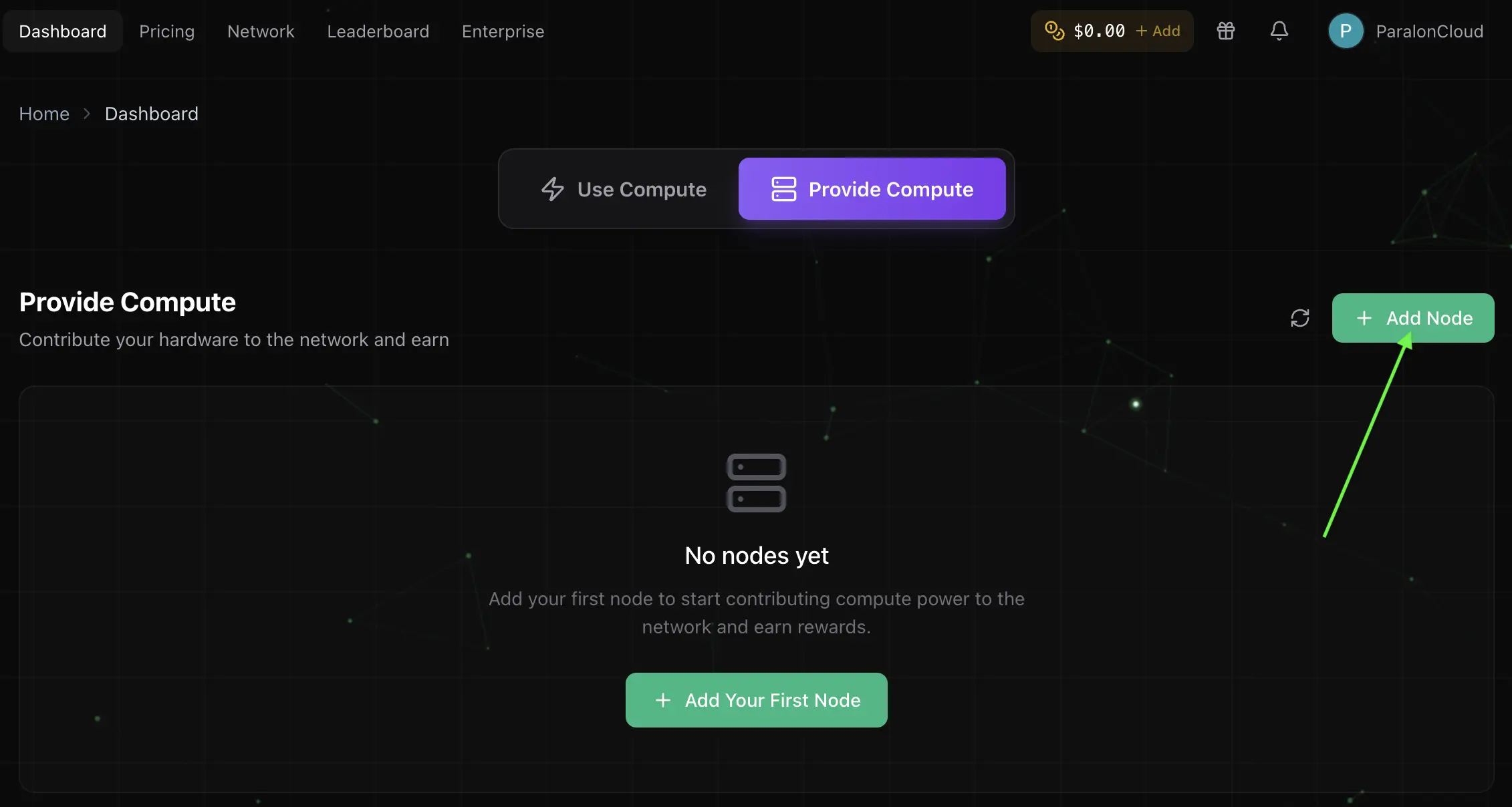
Sign in and go to your Dashboard. Switch to the Provide compute tab and click Add Node.
2. Name your node and pick your OS
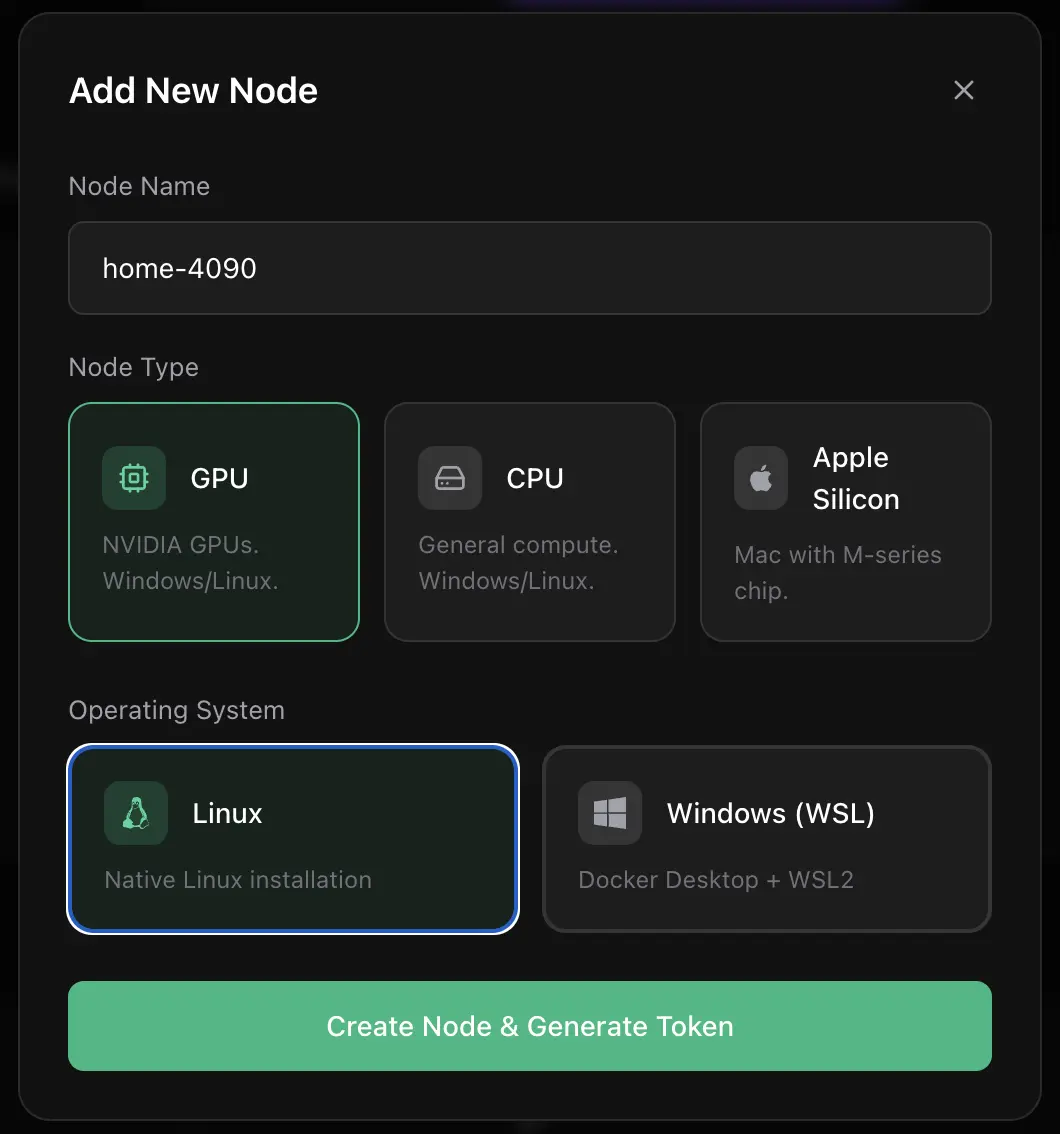
Give the node a recognizable name (e.g. home-4090) and choose your operating system:
- Linux — a native Linux installation.
- Windows (WSL) — Docker Desktop running on WSL2.
You'll get a one-time install command tied to your account, tailored to the OS you pick.
For a GPU node, Advanced options holds three choices most providers leave as they are:
-
How it is rented: On-demand, the default, or Spot, for a machine you also use yourself (see Spot Nodes).
-
Whether it starts accepting rentals right away.
-
Who can rent it: Everyone, or only chosen renters. Add people by email (
[email protected]), anyone at a company by domain (@company.com), or an organization on Paralon by its name. A private node is seen and rented only by them, appears first for them, and takes no Paralon workloads, so it earns from their rentals only. People and organizations you add are told by email when the node is ready to rent: right away if it already is, otherwise the first time it comes online and passes its check.How the list matches: an email matches that person's own account. A domain matches addresses at exactly that domain (
@company.comlets in[email protected], not[email protected]). An organization matches rentals made in its workspace. You are not on the list unless you add yourself, so to rent your own private node, add your email. Someone removed from the list is not told; the node simply stops showing for them.
3. Run the install command
Copy the generated command and run it on the machine with the GPU. Your account token is filled in automatically — just paste and run.
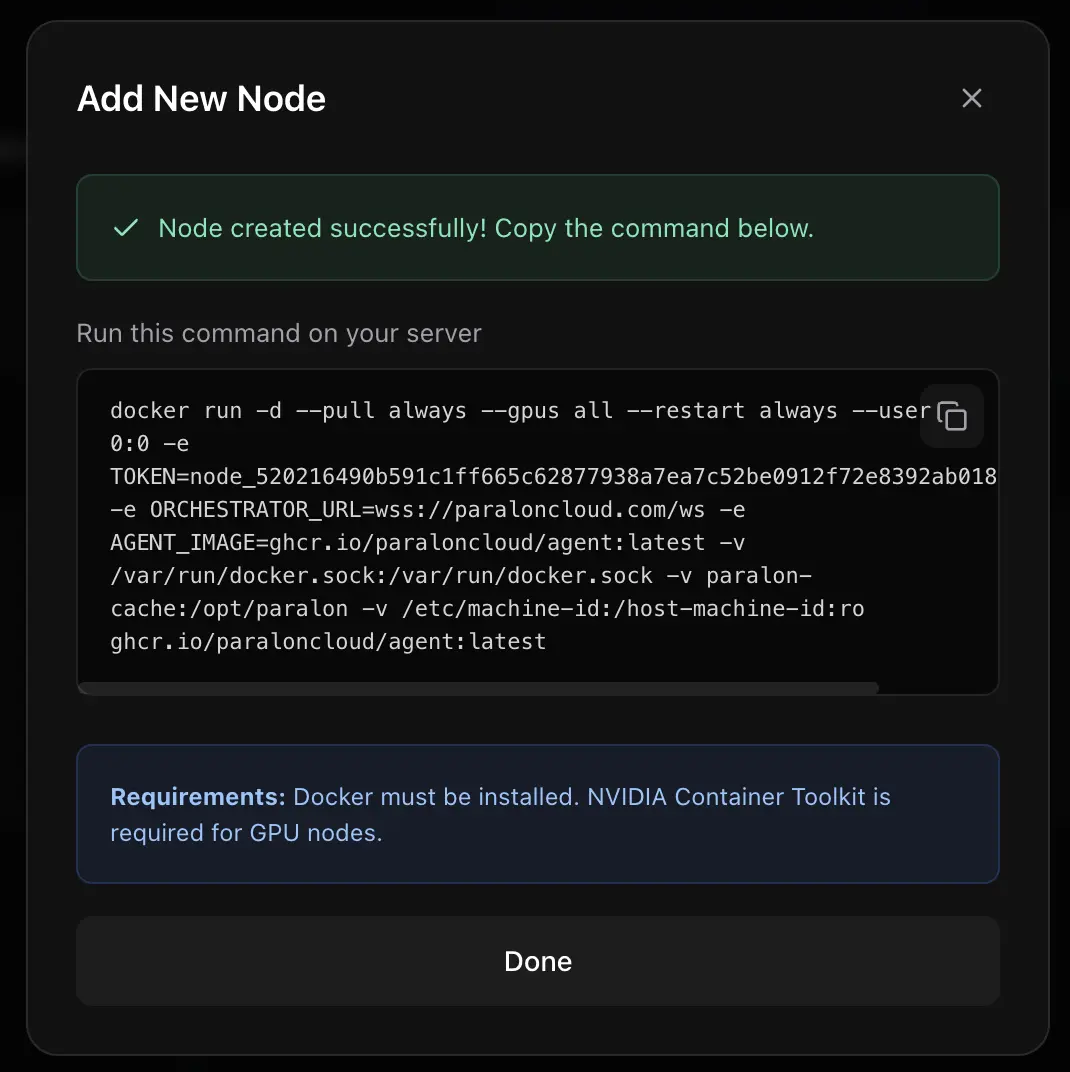
The agent runs in the background, survives reboots, and connects out through a secure tunnel — no port forwarding or public IP needed.
Only some of your GPUs
The generated command gives the agent every GPU with --gpus all. To keep some cards for other work, replace it with the ones you want to share:
--gpus device=0              # only the first GPU
--gpus '"device=0,1"'        # the first two (a list needs the inner double quotes)
The agent then verifies, rents out and serves inference only on those GPUs; the others stay yours.
GPU numbers follow the driver's order, which can change on a machine with different cards or after a driver update. To pin exact cards, use their UUIDs from nvidia-smi -L instead:
--gpus '"device=GPU-4251e6b3-7b4a-e958-102f-e83433a436d9"'
4. Wait for verification
Once the agent connects, your node appears in the dashboard. ParalonCloud runs a quick verification (hardware check + a benchmark) and pre-pulls the rental image. When that finishes, the node flips to rent-ready and can accept rentals. The first time it does, you get an email that it is live, with its page and buttons to share it.
5. Control your node
From the dashboard you can:
- Toggle rentals on/off — pause hosting whenever you want. On a spot node the node has a Pause / Resume button, which stops new rentals and gives a running rental 2 minutes' notice (spot nodes run no Paralon workloads).
- Edit the node — rename it, switch it between on-demand and spot, or change who can rent it. A change to who can rent it applies from the next rental.
- Re-fetch the install command for a node.
- Watch status and earnings.
Earnings are billed to renters per minute and credited to your balance for the time your node is actually rented. You stay in control — stop accepting rentals at any time.
6. Share your node
Every node has its own page, and its address is the link to promote it:
https://paraloncloud.com/rent/<node id>
In the dashboard, expand the node: Share link shows the address, with a Copy button. It is shown while the node accepts rentals, not while rentals are switched off or a spot node is paused. Post it anywhere: the link shows a preview card with the GPU, and whoever opens it lands on your node, ready to rent. The page opens whatever state the node is in. It can be rented from there only while the node is online, verified and accepting rentals; if it is rented, offline, being verified or has rentals switched off, the page says so.
Running many machines? The Provider API adds nodes, returns their install command and controls them from your own scripts.
Next: see what renters experience in Rent a GPU.