
Open WebUI is the chat window most people put in front of open models: it looks and works like ChatGPT, with conversations, file uploads and model switching. Ollama is what runs the models behind it. Together they are the usual way to get a private ChatGPT, but they need a GPU, and setting both up on a cloud machine (drivers, CUDA, ports, a login, a way in from your browser) takes longer than the chat you wanted.
On ParalonCloud it is one choice at Rent. Pick Open WebUI and the machine starts with Open WebUI and Ollama installed, running, and behind its own private link.
What you get
- Open WebUI and Ollama, pinned and tested. The Open WebUI version on the card (v0.12.5 today) is one we installed and ran on a rental before offering it, with the exact Python packages of that test. Ollama (v0.40.13) is pinned by checksum.
- Your own link, no login. Open WebUI opens at its own address with a token in it, like the JupyterLab link. Whoever has the link is the admin: you pull models and change settings without creating an account.
- The models run on the GPU you rented. Nothing goes to an outside API. Chats and models stay on the machine and are deleted when the rental ends.
- JupyterLab or SSH as well. It is a normal rental with the apps on top: a terminal for
ollamaandnvidia-smi, or SSH with your key and the Ollama API through a tunnel. - The same price as the clean machine, billed per minute from the moment the machine answers.
What we measured
On an RTX 4090 in Bucharest with a fast line, from the Rent button:
| RTX 4090 (24 GB) | |
|---|---|
| JupyterLab answers, billing starts | 25 s |
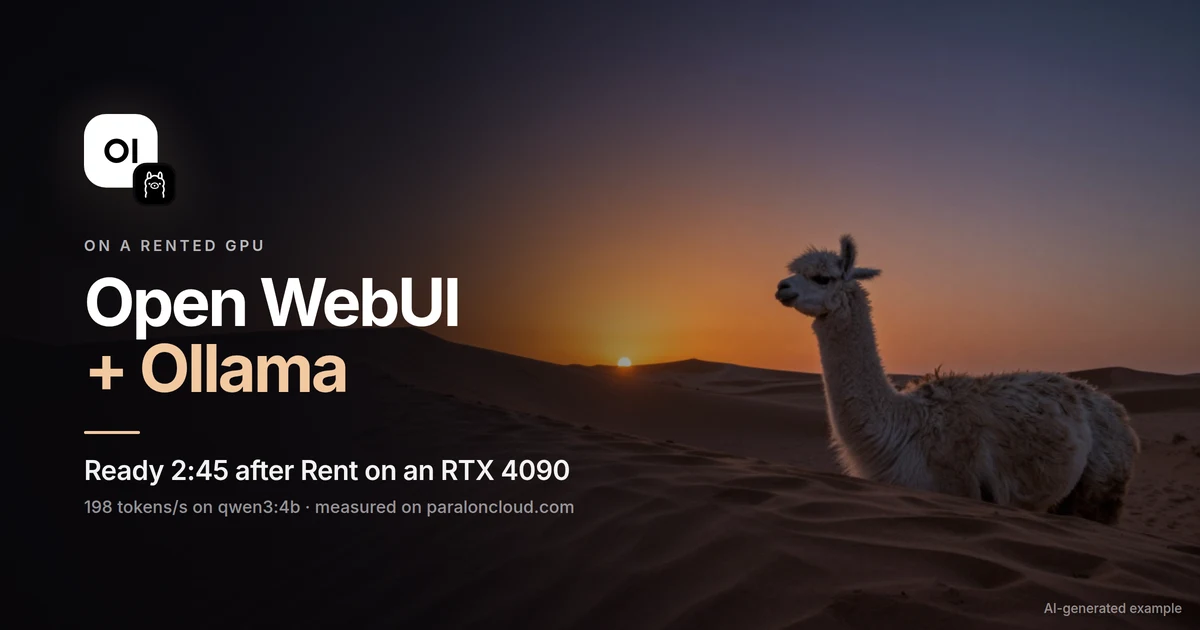
| Open WebUI answers, Open Open WebUI appears | 2 min 45 s |
| qwen3:4b, generation | 198 tokens/s |
| qwen3:4b, reading the prompt | 1,594 tokens/s |
| qwen3:4b in VRAM | 2.4 GB of weights + 4.6 GB of context cache |
| gemma3:4b, generation | 182 tokens/s (a 173-token answer in under a second) |
gemma3:4b in VRAM (ollama ps) | 3.1 GB, 100% GPU |
| gemma3:27b, generation | 45.8 tokens/s |
gemma3:27b in VRAM (ollama ps) | 17 GB, 100% GPU |
| qwen3:32b at Ollama's default context | 29 GB: 21% on the CPU, 6.3 tokens/s |
| qwen3:32b with a 4,096-token context | 21 GB, 100% GPU, 40.8 tokens/s |
| First model after Ollama starts, loading | 19.8 s (later models: 6 s for gemma3:27b) |
The 2:20 between the machine answering and Open WebUI answering is mostly downloads: Ollama itself (1.5 GB) and Open WebUI's Python packages (about 450 MB), at the machine's own speed. On a slower line it takes longer; at 50 Mbps, the slowest we list, count six to eight minutes. JupyterLab is usable while it runs, and the start screen shows each step. The Network Mbps column on the GPU list tells you which machines are quick.
Which GPU for which model
Ollama loads a model onto the GPU's VRAM, and the model's download size is roughly the VRAM its weights take. Add room for the conversation (the context cache: 4.6 GB for qwen3:4b at Ollama's default context in our test). Download sizes from the Ollama library; the fits are our estimates from those sizes, except where a row says measured:
| Model | Download | 8 GB | 12 GB | 16 GB | 24 GB (RTX 4090) | 32 GB (RTX 5090) |
|---|---|---|---|---|---|---|
| llama3.2:3b | 2.0 GB | Fits | Fits | Fits | Fits | Fits |
| qwen3:4b | 2.5 GB | Fits | Fits | Fits | Fits | Fits |
| gemma3:4b | 3.4 GB | Fits | Fits | Fits | Fits | Fits |
| qwen2.5:7b, llama3.1:8b | 4.7 to 4.9 GB | Tight | Fits | Fits | Fits | Fits |
| deepseek-r1:8b | 5.2 GB | Tight | Fits | Fits | Fits | Fits |
| gemma3:12b | 8.2 GB | No | Tight | Fits | Fits | Fits |
| qwen3:14b | 9.3 GB | No | Tight | Fits | Fits | Fits |
| gpt-oss:20b | 14 GB | No | No | Tight | Fits | Fits |
| mistral-small3.2:24b | 15 GB | No | No | Tight | Fits | Fits |
| gemma3:27b | 17 GB | No | No | No | Fits (measured: 17 GB, 45.8 tokens/s) | Fits |
| qwen3:32b, deepseek-r1:32b | 20 GB | No | No | No | Only with a short context (measured below) | Fits |
"Tight" means it loads but leaves little room for long conversations; past that, Ollama moves part of the model to the CPU and gets much slower.
The context is what tips a big model over. qwen3:32b is 20 GB of weights, but at Ollama's default context it took 29 GB on our 24 GB RTX 4090: Ollama put 21% of it on the CPU and it wrote 6.3 tokens/s. With the context set to 4,096 tokens the same model took 21 GB, ran 100% on the GPU and wrote 40.8 tokens/s, six and a half times faster. So on a card where a model only just fits, shorten the context: in Open WebUI, in the chat's Controls under Advanced Params (Context Length), or per request with "options": {"num_ctx": 4096} on Ollama's API. ollama ps shows what you got: 100% GPU is what you want. If you need long conversations with a model that size, rent the 32 GB card instead. We offer Open WebUI on cards with 8 GB of VRAM or more. Ollama uses one GPU for a model that fits on one; for the biggest models a 24 or 32 GB card is simpler than two small ones.
Step by step
1. Pick a GPU
Open the GPU list and pick a machine with enough VRAM for the model you want (the table above). Look at Network Mbps too: every model you pull downloads at the machine's speed, and a 20 GB model takes seven minutes at 400 Mbps and almost an hour at 50.
2. Choose Open WebUI
Press Rent. In the first step, What to run, pick Open WebUI (the card with Open WebUI's mark and Ollama's llama). On a machine it does not fit, the card is greyed out and says why. Then choose JupyterLab or SSH for the machine itself, accept the terms, and start.
3. Open it
The start screen counts the steps; the last one, Set up Open WebUI, shows what the install is doing. When Open WebUI answers, the main button becomes Open Open WebUI. The same button is on My Rentals for as long as the rental runs.
4. Pull a model and chat
Open WebUI starts with no model. Two ways to get one:
- In Open WebUI: open the model selector at the top, type a model name from the Ollama library (for example
gemma3:4b) and choose Pull "gemma3:4b" from Ollama.com. It downloads onto the machine and appears in the list. - In the terminal (JupyterLab's or SSH):
ollama pull gemma3:4b
ollama list
ollama ps        # PROCESSOR should say 100% GPU
Then pick the model and write. The first message loads it into VRAM: about 20 seconds for the very first model after the machine starts, 6 seconds for gemma3:27b after that in our test. Then it answers at full speed, and Ollama keeps it loaded while you chat.
Thinking models feel slower than they are. qwen3 and deepseek-r1 write a reasoning pass before the answer. In our test, qwen3:4b asked for three sentences produced 2,657 tokens; at 198 tokens/s that is 13 seconds before you have your three sentences. For quick chat pick a model without thinking (gemma3, llama3.2, qwen2.5, mistral-small3.2): gemma3:4b wrote a 173-token answer in under a second on the same card. Or turn thinking off in the model's settings in Open WebUI. Keep the thinking models for questions that deserve them.
5. Stop
Stop the rental from My Rentals when you are done. Everything on the machine is deleted when the rental ends, chats and models included. To keep a conversation, export it from Open WebUI (the chat's menu, then Download) first.
The Ollama API, over SSH
Ollama answers on localhost:11434 inside the machine, with its own API and an OpenAI-compatible one at /v1. It is not open to the internet; on an SSH rental you reach it through your own tunnel. Add -L to the rental's SSH command:
# The rental's SSH command (My Rentals, or connection.ssh_command), with two -L added:
ssh -L 11434:localhost:11434 -L 8080:localhost:8080 <the rest of the rental's SSH command>

# then, on your computer
curl http://localhost:11434/api/generate -d '{"model": "gemma3:4b", "prompt": "Hello"}'

# or any OpenAI client, with base_url http://localhost:11434/v1
Port 8080 is Open WebUI itself, at http://localhost:8080, if you prefer it without the link. So the same rental serves your scripts, a local app that speaks the OpenAI API, or an editor plugin, with the model on the rented GPU.
From code and from AI agents
The Rental API has the same choice: GET /api/v1/gpus lists on each machine the apps it can start with, and "template": "openwebui" on POST /api/v1/rentals starts it. GET /api/v1/rentals/{id} then reports the install (app.state) and, once it answers, connection.app_url.
With the MCP server in Claude Code, Claude Desktop or Cursor, it is one sentence: "Start Open WebUI on a GPU with 24 GB for two hours and give me the link." Setting up the MCP server takes a minute.
Rent a GPU, or call a model by API?
If you want a chat window for yourself or a small team, model hopping, your own system prompts and files, rent the GPU: you pay by the minute for the machine, however much you chat. If you want a model inside your own app with no machine to run, our OpenAI-compatible API is simpler, billed per token. Own GPU or pay per token works out where one becomes cheaper than the other.
Good to know
- The link is the key. Whoever has the Open WebUI link is its admin. Share it only with whom you would share the machine.
- Licences are per model. Ollama is MIT and Open WebUI has its own licence; each model has its own terms (qwen3 and gpt-oss are Apache 2.0, Llama and Gemma have their own licences). Check the model's page before you build on it.
- Two background features are off at start: Open WebUI's follow-up suggestions and automatic chat tags. Each is one more call to the model after every answer, and with a small model on one GPU they made the chat feel slow. Turn them back on in Admin Panel, Settings, Interface.
- If Open WebUI does not start, the page says so and the machine keeps running: the logs are
/var/log/paralon-app.logand/var/log/paralon-ollama.log. - Spot machines are cheaper and can be taken back with two minutes' notice: fine for a chat session, less so for a long batch job. Spot or on-demand explains the trade.
Ready? Pick a GPU and choose Open WebUI at Rent.