

ComfyUI is where most image and video generation on a rented GPU happens: Flux, SDXL, Wan, built as a graph of nodes in the browser. Setting it up on a fresh cloud machine is the part nobody enjoys: clone it, match its dependencies to the machine's PyTorch, add ComfyUI-Manager, start it, then work out how to reach a port on a machine behind someone else's router.
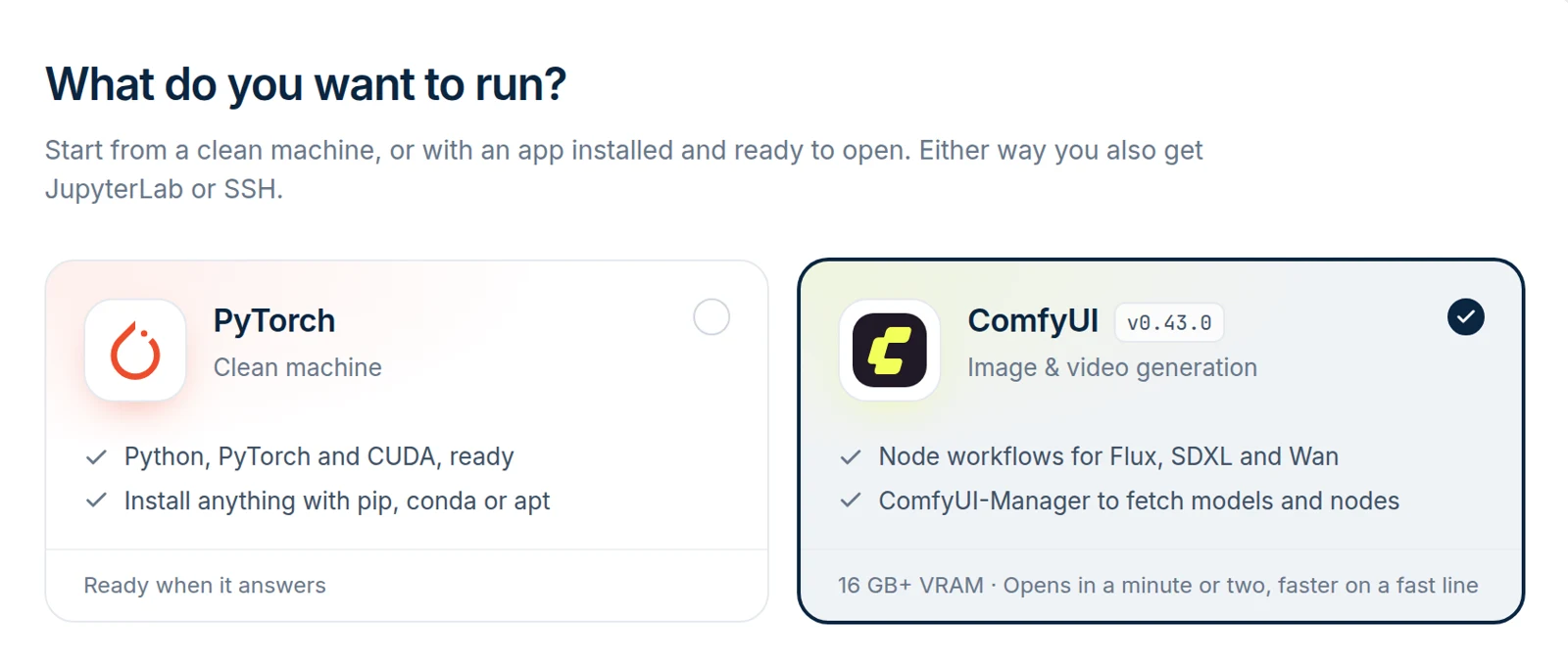
From today that is one choice at Rent. Pick ComfyUI and the machine starts with it installed, running, and behind its own private link.
What you get
- ComfyUI, pinned and tested. The version on the card (v0.43.0 today) is one we installed and ran on a rental before offering it, with the exact Python packages of that test. A new ComfyUI release does not reach rentals until it has been through the same test.
- ComfyUI-Manager on, to install models and custom nodes from inside ComfyUI.
- Its own link. ComfyUI opens at its own address with a token in it, like the JupyterLab link: nobody else can open it, and no port is open on the provider's network.
- JupyterLab or SSH as well. It is a normal rental with ComfyUI on top: a terminal for
wget,huggingface-cliandnvidia-smi, a file browser, or SSH with your key. - The same price as the clean machine, billed per minute from the moment the machine answers.
How fast it is
We measured it on an RTX 4090 in Bucharest with a fast line (about 400 Mbps), from the Rent button to an open ComfyUI:
| Step | Time after Rent |
|---|---|
| JupyterLab answers, billing starts | 23 s |
| ComfyUI v0.43.0 answers, Open ComfyUI appears | 73 s |
The install is quick because ComfyUI's environment reuses the PyTorch and CUDA already on the machine instead of downloading them again: 35 seconds from an empty folder to a running ComfyUI in our test of the install on its own. What it still downloads, ComfyUI and about 1.3 GB of Python packages, comes at the machine's own speed, so the Network Mbps column decides most of the wait: at 50 Mbps, the slowest line we list, count three to four minutes instead of one. JupyterLab is usable while it runs, and the start screen shows each step.
Which GPU for ComfyUI
ComfyUI runs on one card, so what matters is the VRAM of a single GPU, not the machine's total: two 12 GB cards do not run what one 24 GB card does. We offer ComfyUI on cards with 16 GB or more. Rough fits, at the precision ComfyUI usually loads:
| What you run | 16 GB (RTX 4060 Ti 16 GB, 5070 Ti) | 24 GB (RTX 4090) | 32 GB (RTX 5090) |
|---|---|---|---|
| SDXL, SD 1.5 | Comfortable | Comfortable | Comfortable |
| Flux schnell / dev (FP8) | Works | Comfortable | Comfortable |
| Flux dev at full precision | No | Tight | Works |
| Wan 2.2 5B video | Tight | Works | Comfortable |
| Wan 2.2 14B video | No | With offloading | With offloading |
These come from the model sizes and the community's reports, not our own benchmarks; resolution, batch size and LoRAs move them. When in doubt, the 4090 is the safe middle and the 5090 has room to spare: see what each card measured on our network on the RTX 4090 and RTX 5090 pages.
Step by step
1. Pick a GPU
Open the GPU list and pick a machine with 16 GB of VRAM or more. Two columns help with ComfyUI in particular:
- Network Mbps: ComfyUI's install and every model download at the machine's speed, and models are large (the Flux schnell FP8 checkpoint is 17 GB, SDXL base 7 GB): 17 GB takes about 6 minutes at 400 Mbps and 45 at 50 Mbps. For a session of model-hopping, the download column matters as much as the GPU.
- Disk: each model needs room. ComfyUI needs 50 GB free, and the card is greyed out on a machine with less.
2. Choose ComfyUI
Press Rent. The first step, What to run, has two cards: PyTorch, the clean machine, and ComfyUI. Pick ComfyUI. On a machine it does not fit, the card is greyed out and says why ("Needs a GPU with 16 GB of VRAM").
Then choose JupyterLab or SSH for the machine itself, accept the terms, and start.
3. Open it
The start screen counts five steps; the fifth, Set up ComfyUI, shows what the install is doing. When ComfyUI answers, the main button becomes Open ComfyUI. The same button is on My Rentals for as long as the rental runs.
4. Get your models
ComfyUI starts empty: you choose the models, and only those take time and disk. Two ways:
- In ComfyUI: open the Manager, then Model Manager, search, install. Custom nodes install the same way.
- From the terminal (JupyterLab's terminal or SSH), straight into ComfyUI's model folders:
cd /workspace/ComfyUI/models/checkpoints

# SDXL base 1.0 (7 GB)
wget https://huggingface.co/stabilityai/stable-diffusion-xl-base-1.0/resolve/main/sd_xl_base_1.0.safetensors

# Flux.1 schnell, FP8, everything in one file (17 GB): the Comfy-Org repackage
wget https://huggingface.co/Comfy-Org/flux1-schnell/resolve/main/flux1-schnell-fp8.safetensors
Press R in ComfyUI to refresh the model list, load a workflow and queue it. The ComfyUI examples have ready workflows for Flux, and the ComfyUI docs cover Wan 2.2 video with the files it needs from the Comfy-Org repackage.
5. Take your results and stop
Outputs land in /workspace/ComfyUI/output. Download them from JupyterLab's file browser or with scp over SSH, then stop the rental from My Rentals. Everything on the machine is deleted when the rental ends, models included.
From code and from AI agents
The Rental API has the same choice. GET /api/v1/gpus lists on each machine the apps it can start with, so you never compare VRAM yourself:
# Machines that can start with ComfyUI
curl -s https://paraloncloud.com/api/v1/gpus -H "Authorization: Bearer $KEY" \
  | jq '.gpus[] | select(.templates | index("comfyui")) | {node_id, gpu: .gpus[0].model, price_per_hour}'

# Start one with ComfyUI
curl -X POST https://paraloncloud.com/api/v1/rentals \
  -H "Authorization: Bearer $KEY" -H "Content-Type: application/json" \
  -d '{"node_id": "<node_id>", "template": "comfyui"}'
GET /api/v1/rentals/{id} then reports the install (app.state: installing, starting, ready) and, once it answers, connection.app_url, the link that opens ComfyUI.
With the MCP server (@paraloncloud/mcp 1.5.0) in Claude Code, Claude Desktop or Cursor, it is one sentence: "Start ComfyUI on a 4090 for two hours and give me the link." The agent finds a machine that can run it, confirms the price with you, starts it with template: "comfyui" and hands you the link when ComfyUI answers. Setting up the MCP server takes a minute.
What to know
- The link is the key. Whoever has the ComfyUI link can open it, as with JupyterLab's. Share it only with whom you would share the machine.
- On SSH you can reach ComfyUI without the link, through your own tunnel: add
-L 8188:localhost:8188to the rental's SSH command and openhttp://localhost:8188. - If ComfyUI does not start, the page says so and the machine keeps running: the install log is
/var/log/paralon-app.log. Stop the rental if you do not want to look into it. - Spot machines are cheaper and can be taken back with two minutes' notice: fine for a session of experiments, risky for a long render queue. Spot or on-demand explains the trade.
- Models do not persist between rentals yet. Keep the download commands of your usual models in a script and run it at the start of each session, or put them in
/workspace/on-start.sh, which runs on every start of the machine.
Ready? Pick a GPU and choose ComfyUI at Rent.